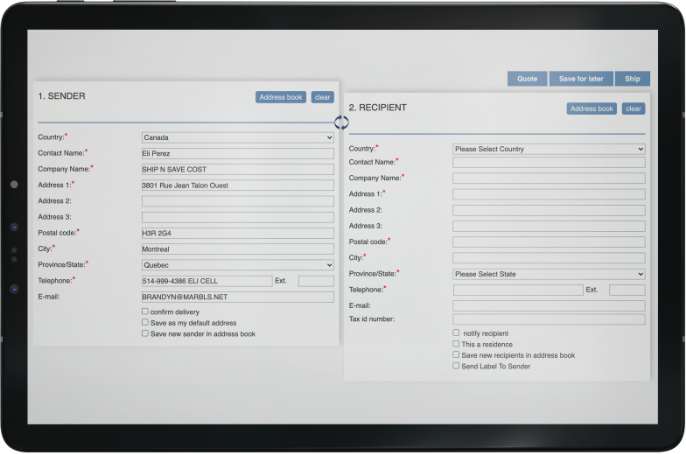
Begin by entering your sender and recipient information, either choose from your address book or enter it for the first time and save it to your address book for future shipments, then the shipment details. If you’re shipping internationally a commercial invoice section will also appear for you to fill out at no additional costs. Xpress For Less makes it easy and clear.
Step 2
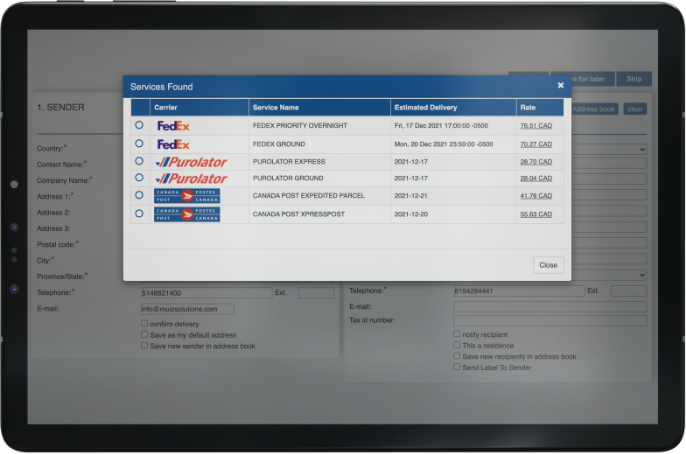
Picking the right service
After completing the shipment details hit the quote button to access a list of carriers and services to see how much each service will cost. Choose the service that matches your needs, every service will be at the discounted rate applied to your account.
Step 3
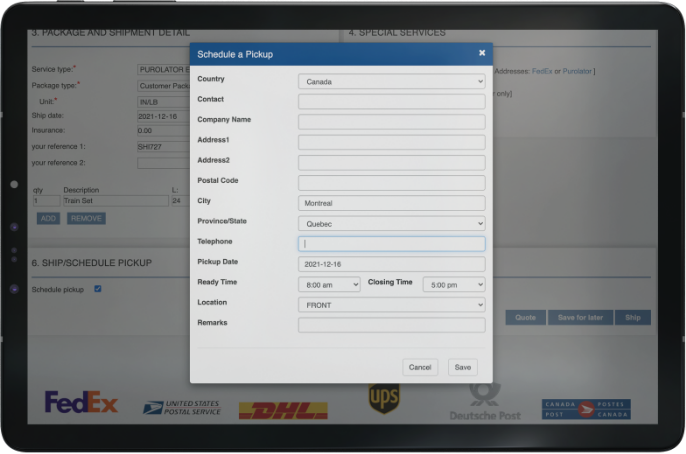
Scheduling a pickup
Once you choose the service scheduling a pickup is as easy as clicking a button. Check the schedule pickup box and a pop-up will appear with the pick-up details. Ensure that the correct address and scheduled time is appearing in the window and hit the save button.
Step 4
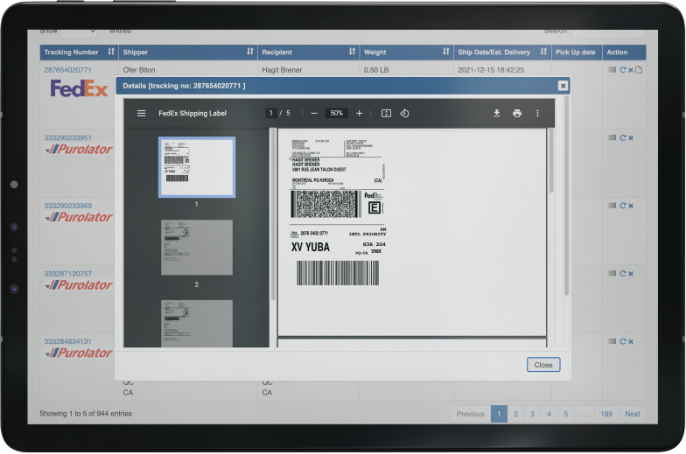
Print your Label
Xpress For Less gives you 2 options to print your label, either by thermal printer (if you have one) or on a standard printer with regular paper. If you’re shipping internationally, you will also have a commercial invoice provided to print as well. Simply stick it to the box or insert it into a waybill window pouch and you’re all set.
Step 5
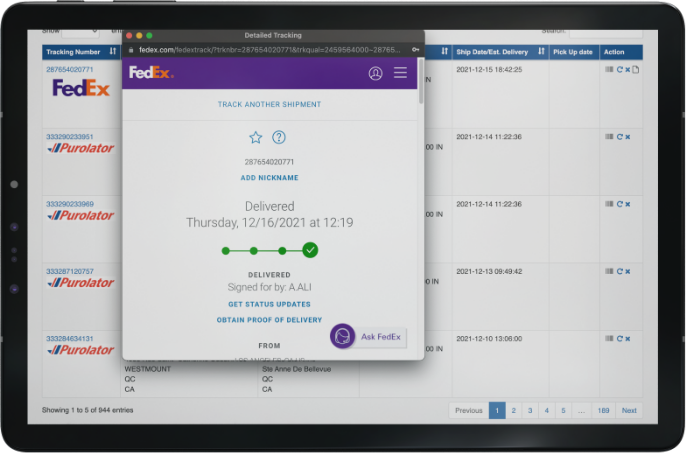
Tracking your shipments
Xpress For Less makes it easy to track your shipment. Once you’re logged in to your account, go to your shipment log and click on the tracking number. A window will appear with all your shipment information and the tracking details making it easy for you to know where and when your shipment will be delivered.